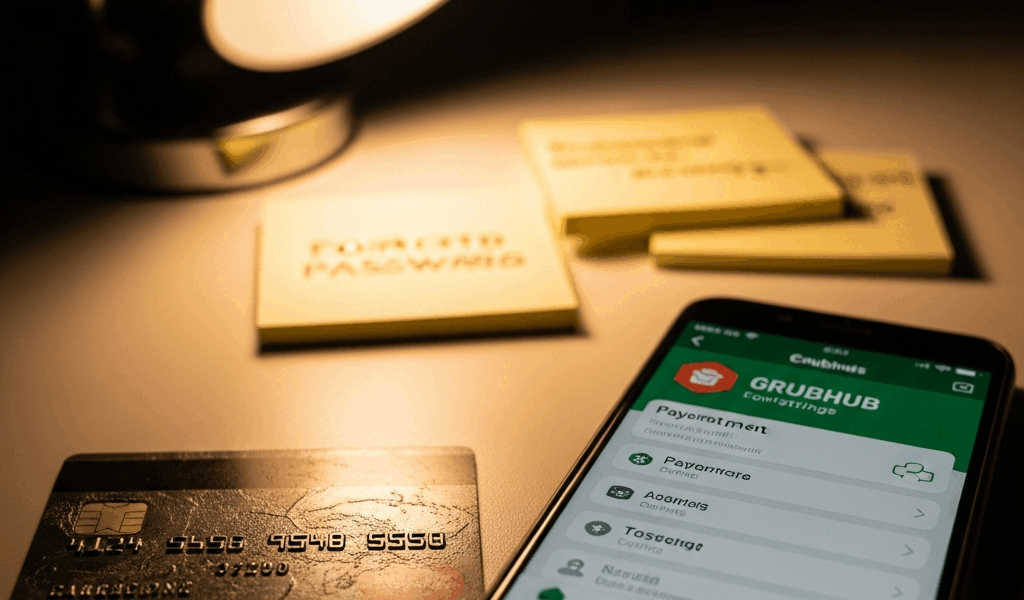
If Grubhub charged an old or unexpected card, first identify the transaction: a new food order, a pending authorization, a Grubhub membership charge, or a charge you do not recognize. Then compare the last four digits on the Grubhub receipt with the payment method shown by your bank or wallet.
For food orders, Grubhub’s terms say it charges the payment method you specify at the time of purchase. That means the most important check is the payment choice on the final checkout screen—not merely which cards appear saved in the account.
Grubhub charged the wrong card: what to do now
- Open the Grubhub order receipt. Confirm the restaurant, date, total, and payment method ending digits.
- Check the bank transaction. Determine whether it is pending or posted and whether the merchant description matches Grubhub.
- Check the payment source used at checkout. If you selected a digital wallet, inspect the card selected inside that wallet.
- Update saved payment information. Grubhub says payment information can be corrected or updated from the account profile page.
- Verify the payment line before the next order. Select the intended card or wallet on the review screen before submitting.
- Contact Grubhub for a completed wrong-card order. Provide the order number and last four digits; ask what resolution is available.
- Contact the issuer promptly if the charge is unauthorized. Secure both the Grubhub account and payment account.
Why Grubhub may appear to charge an old card
There is no single documented “old card” bug. Several different situations can look similar, and the receipt is the fastest way to separate them.
The old card was selected at checkout
A saved card can remain available until it is updated or removed. Grubhub’s Terms of Use state that the platform charges the payment method specified at purchase. If the checkout screen showed the old card, the order may correctly follow that selection even if you intended another card.
Before placing a future order, expand or select the payment row on the final review screen, choose the intended method, and verify its ending digits. Do this for every order until the old method no longer appears.
A digital wallet used its own selected card
If checkout used Apple Pay, Google Pay, PayPal, or another wallet, the underlying card selection may be managed by that provider rather than the Grubhub saved-card list. Review the wallet’s transaction details and default or selected funding source.
Removing a card from Grubhub does not necessarily remove it from a separate wallet account. Likewise, updating a wallet does not automatically prove that a Grubhub-saved card changed. Check the place where the payment method was actually selected.
The transaction is a card authorization
Grubhub’s terms say it may seek preauthorization before purchase to verify that a card is valid and has sufficient credit. A pending authorization can look like a charge, but it is not always the final posted amount.
Compare the pending amount with the digital receipt and wait for the bank’s normal pending-transaction process. If the authorization is duplicated, remains longer than the issuer expects, or accompanies a separate posted charge, contact both Grubhub and the issuer with the order information.
The charge is not a food order
Check whether the description and amount correspond to Grubhub+ or another account feature rather than a restaurant purchase. Review the membership area and recent email receipts. Membership billing may have its own current payment record or renewal history.
Do not assume changing the card on a restaurant order automatically changes every subscription or third-party payment arrangement. Review the specific membership and the provider through which it was activated. If the billing source is unclear, ask Grubhub support to identify the transaction.
A replacement card is connected to the same account
A bank statement can sometimes show a replacement or reissued card relationship differently from the digits displayed in an app. Do not infer that Grubhub bypassed an expired card. Ask the card issuer which account received the authorization and whether the old and new card numbers map to the same underlying account.
How to change payment information on Grubhub
Grubhub’s official data-management page says you can correct or update payment information in your account profile page. Because app and website labels can change, use the current account or profile area rather than relying on an outdated sequence of button names.
The general process is:
- Sign in to the same Grubhub account used for the order.
- Open the account or profile area.
- Find saved payment information.
- Add or update the valid method if needed.
- Remove the old method if the current interface allows it and no active account requirement prevents removal.
- At the next checkout, explicitly select the correct method and confirm the last four digits.
If the option is unavailable, the old card returns, or the website and app disagree, sign out and back in, update the app, compare with Grubhub.com, and then use official support. Avoid repeatedly adding the same card, which can make it harder to identify the correct entry.
Why can’t you remove the old card?
Possible explanations include an incomplete account update, a method required for checkout, a separate wallet, an active membership, or a temporary interface problem. Grubhub’s terms note that a gift card alone cannot complete checkout; another payment form must be provided even if it is not charged. Campus and corporate accounts can also use payment arrangements different from a standard personal account.
Rather than guessing which rule applies, verify:
- Whether you are signed into the correct personal, campus, or business account
- Whether the card is saved by Grubhub or by a wallet
- Whether an active membership references the method
- Whether another valid payment method is already available
- Whether the app and website show the same saved methods
If the card cannot be removed after those checks, contact Grubhub rather than sharing full card details in email or chat. Provide only the order number and last four digits unless the secure support flow specifically requires something else.
Can Grubhub move the charge to another card?
Do not assume a completed order can simply be moved from one card to another. Grubhub’s terms say payments are generally final and non-refundable unless Grubhub determines otherwise; credits or refunds may be offered case by case for an order or charging error.
Contact Grubhub immediately and ask whether it can cancel, refund, or otherwise correct the transaction. Do not place a duplicate order on the preferred card. If Grubhub issues a refund, the original issuer controls when it becomes visible.
What if you do not recognize the Grubhub charge?
Treat an unfamiliar charge differently from accidentally choosing your own old card:
- Check all Grubhub accounts and email addresses you use.
- Review order history, receipts, memberships, and wallet transactions.
- Ask authorized household members whether they placed the order.
- Change the Grubhub password to a unique password and secure the associated email account.
- Contact Grubhub Customer Service with the transaction date, amount, and last four digits.
- Contact the card issuer promptly and follow its unauthorized-transaction process.
Do not post the full card number, security code, password, or one-time verification code. If the issuer replaces or locks the card, update legitimate recurring payments separately.
Why does Grubhub retain payment information?
Grubhub’s Privacy Policy says it collects payment details when a customer orders or updates saved payment methods. It uses that information to process payments and detect or prevent fraud and abuse. The policy also explains that payment information may be retained while an account exists and for an additional period needed for legal obligations or claims.
Removing a visible saved card therefore does not necessarily mean every transaction record is erased. Historical order and payment records may remain for accounting, fraud prevention, legal, or support purposes. That is different from the card remaining selectable for a future order.
How to prevent another wrong-card order
- Review saved cards periodically and remove obsolete selectable methods.
- Update cards separately in any digital wallet used with Grubhub.
- Check the last four digits on the final order-review screen.
- Review membership billing after changing a food-order payment method.
- Keep only one Grubhub personal account when possible; Grubhub’s terms generally limit users to one account per branded platform for personal use.
- Read the emailed receipt immediately after ordering.
- Use unique passwords and secure the email attached to the account.
Frequently asked questions
Why did Grubhub charge my old card?
The old card may have been selected at checkout, used through a wallet, connected to a membership, or represented by a pending authorization. Compare the Grubhub receipt, checkout method, wallet details, and bank transaction before deciding which occurred.
How do I change my Grubhub payment method?
Open the account profile and update saved payment information, then explicitly choose the intended method on the final checkout screen. Grubhub says the method specified at purchase is the one it is authorized to charge.
How do I remove a card from Grubhub?
Use the saved-payment area in the account profile when the current interface provides a remove option. If the card cannot be removed, confirm whether it belongs to a separate wallet, membership, campus, or business arrangement and contact support.
Can an expired card still show a Grubhub charge?
Ask the issuer whether the transaction reached the replacement card or underlying account. A displayed old card number does not by itself explain how the issuer processed the authorization.
Can I get a refund and repay with another card?
Only Grubhub can determine the available resolution for a completed order. Contact support with the order number and payment ending digits; do not create a duplicate order.
Bottom line
If Grubhub charged an old card, identify the exact transaction, compare the receipt and payment statement, update saved information, and verify the payment method at the next checkout. Check wallets and memberships separately. For a completed wrong-card order, contact Grubhub; for an unauthorized charge, secure the account and contact the card issuer promptly.
If the concern is the amount rather than the card used, see why Grubhub can cost more than the restaurant menu.


Leave a Reply